Photoshop设计教程:个人笔记本电脑的广告设计(3)
文章来源于 Iconfans,感谢作者 a632172403 给我们带来经精彩的文章!Step 12:
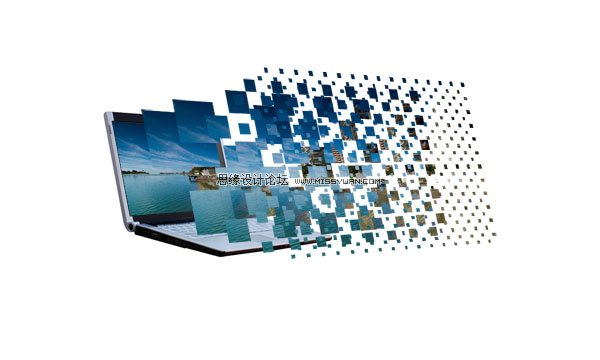
You should still have your original photo layer, as it was duplicated for safe keeping near the start of the tutorial. Duplicate the layer again, and move it so that it is the first layer above your laptop image layer. Then go to edit>transform>distort and fit the photo nicely over the laptop screen. Then hide all of your vanishing point guidelines and make sure that all of your checkerboard photo layers are visible. Seeing as all these layers are within the same layer set select the layer set and drag it to make the graphic more central in your document.
12. 打开我们之前备份的photo原图,复制图层,变换其大小后紧贴笔记本屏幕。
Step 13:
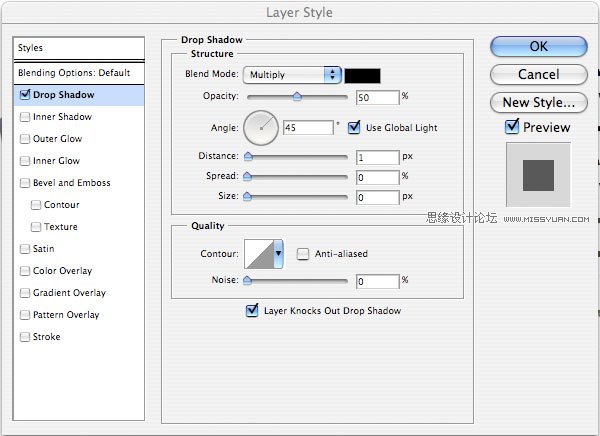
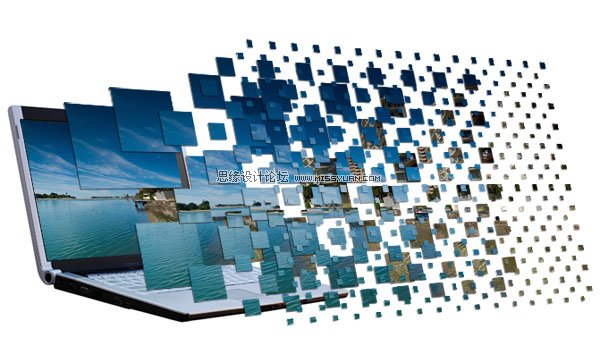
Right click on one of your photo squares layers and click blending options. Apply the drop shadow settings shown below. Then once this has been applied right click on the drop shadow shown in your layers palette, select ‘copy layer style’ and paste the layer style to all of your other photo squares layers. The outcome is shown below:
13.为photo图层添加图层样式:投影参数设置如下:
技巧:为一个图层添加样式以后,右击”复制图层样式“,然后把图层样式粘贴到其他图层上,这样可以为图层快速添加图层样式。
Step 14:
Now create a new layer set below your laptop/photos layer set called ‘background’. Hide your laptop/photos layer set. Create a new layer and fill it with a white to light gray radial blur.
14.新建文件夹命名为”backgroud“。
隐藏其他图层,创建镜像渐变如下图。

Step 15:
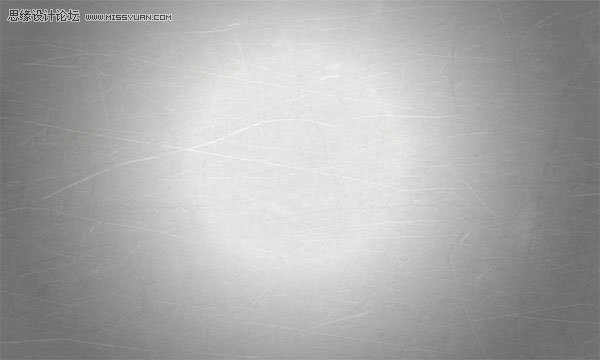
Paste a metal texture onto a new layer above your radial gradient layer and reduce it’s opacity to 20% for a subtle textured effect.
15. 粘贴纹理图片到舞台,置于”background“上方,降低不透明度为20%。
Step 16:
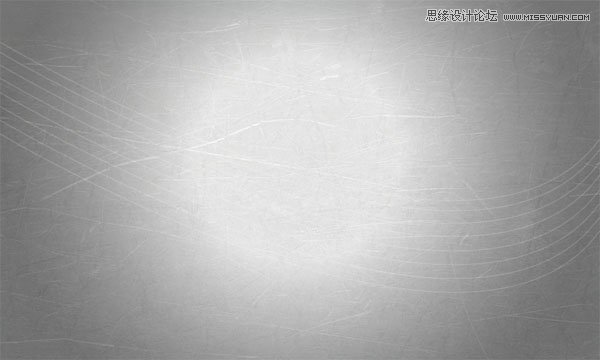
Now create some bendy lines across your background using the pen tool. Be sure to have a white 1px brush selected and then once you have created your bendy pen line right click on it and select ’stroke path’. Then simply duplicate your line layer until you have multiple white lines across your background. I merged all of my line layers together and reduced the merged layer opacity to 30% for a more subtle effect.
16.使用钢笔工具创建一组1px白色的纵贯背景宽度的曲线。
And we’re done!
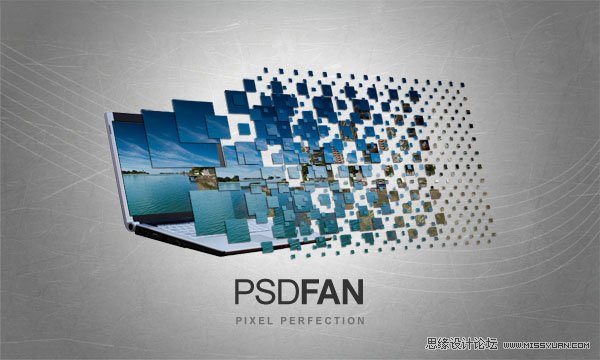
To finish things off I added some cool text. Click the image below if you want the full sized version.
这是我们最终的结果。
 情非得已
情非得已
-
 Photoshop设计撕纸特效的人物海报教程2020-10-28
-
 Photoshop制作立体风格的国庆节海报2020-10-10
-
 Photoshop设计撕纸特效的人像海报2020-03-27
-
 图标设计:用PS制作奶油质感手机主题图标2019-11-06
-
 图标设计:用PS制作中国风圆形APP图标2019-11-01
-
 手机图标:用PS设计儿童贴画风格的APP图标2019-08-09
-
 电影海报:用PS制作蜘蛛侠海报效果2019-07-09
-
 创意海报:用PS合成铁轨上的霸王龙2019-07-08
-
 电影海报:用PS设计钢铁侠电影海报2019-07-08
-
 立体海报:用PS制作创意的山川海报2019-05-22
-
 Photoshop设计猕猴桃风格的APP图标2021-03-10
-
 Photoshop制作逼真的毛玻璃质感图标2021-03-09
-
 Photoshop结合AI制作抽象动感的丝带2021-03-16
-
 Photoshop结合AI制作炫酷的手机贴纸2021-03-16
-
 广告设计:用PS设计山地自行车宣传广告
相关文章15282019-12-16
广告设计:用PS设计山地自行车宣传广告
相关文章15282019-12-16
-
 Photoshop设计电商笔记本电脑海报作品
相关文章3912018-10-31
Photoshop设计电商笔记本电脑海报作品
相关文章3912018-10-31
-
 Photoshop设计时尚的电商笔记本宣传海报
相关文章17502017-02-15
Photoshop设计时尚的电商笔记本宣传海报
相关文章17502017-02-15
-
 Photoshop设计冬季促销广告设计教程
相关文章15402013-03-01
Photoshop设计冬季促销广告设计教程
相关文章15402013-03-01
-
 Photoshop设计猫猫钻石电脑桌面壁纸
相关文章15392012-10-20
Photoshop设计猫猫钻石电脑桌面壁纸
相关文章15392012-10-20
-
 Photoshop绘制质感的苹果电脑图标教程
相关文章6822012-03-08
Photoshop绘制质感的苹果电脑图标教程
相关文章6822012-03-08
-
 Photoshop设计漂亮的电脑主题壁纸
相关文章8572010-12-21
Photoshop设计漂亮的电脑主题壁纸
相关文章8572010-12-21
-
 Photoshop设计一款的笔记本广告教程
相关文章26212009-10-29
Photoshop设计一款的笔记本广告教程
相关文章26212009-10-29